
Situation – Why are mail emails being rejected for not-Active Accounts / Disabled Accounts in Azure.
Solution – Spambrella is honoring the Not Active/Active flag within Azure. See below for instructions on how to enable mailflow for Block Sign-In set accounts in Office 365.
Why Are My Emails Being Rejected For Non-Active In Spambrella/Disabled Accounts In Azure?
There has been a change in the behavior of Spambrella, where we are now honoring the Disabled flag given by Azure.
Accounts that are Block Sign-In in Azure from logon, will be replicated and Not Active in Spambrella/Proofpoint. This will also prevent mail-flow to that address.
To access the Block Sign-In setting within Office 365:
- Open Exchange Admin Center.
- Navigate to Active Users and search for the mailbox.
- Click on the address.
- Block Sign-In can be seen.

- If you are experiencing mail flow issues to accounts, check if the Block Sign-In setting is set to Disabled or Active. Active will need to be set to allow mail flow.
- If set to Block Sign-In, the account in Spambrella/Proofpoint will be honored and set to Not Active.
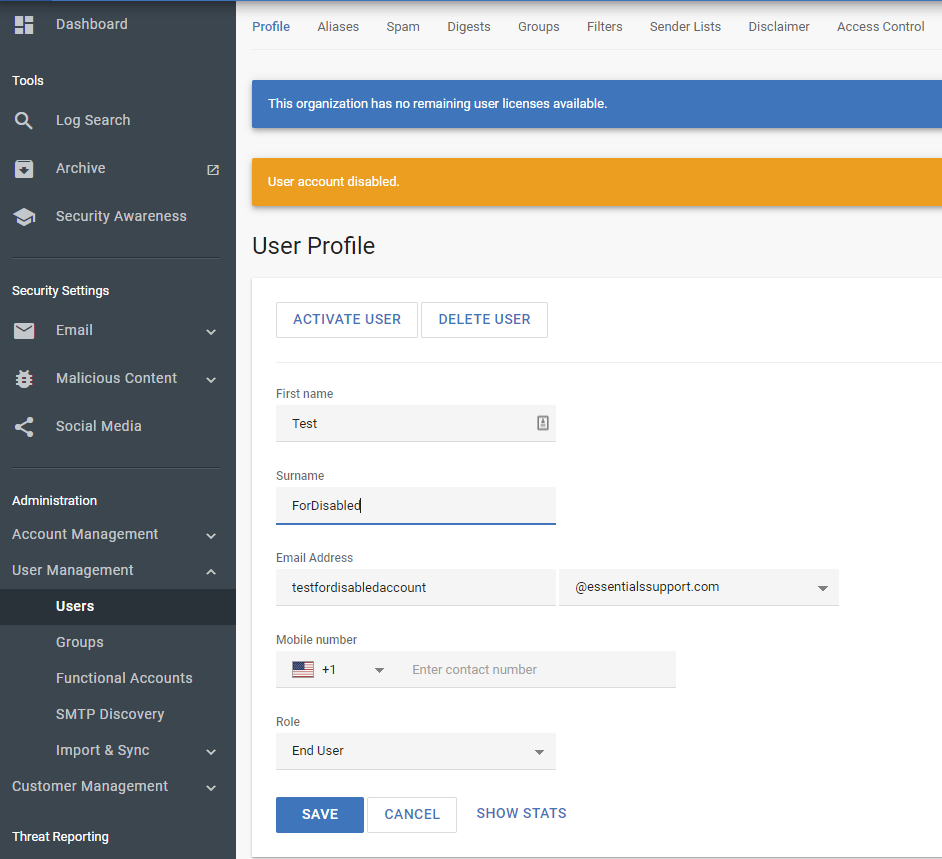
How To Enable Mailflow For Block Sign-In Set Accounts In Office 365:Within Spambrella:
- Navigate to User Management > Users.
- Set the account from Not Active to Active by selecting Activate User.
- Navigate to User Management > Import & Sync > Azure Directory Sync.
- Click Save & Run Sync Now.
- Under Adding/Updating, click Exempt From Sync on the right side of the window.

- Click Sync Active Directory.
This prevents future syncs from converting the Active status to Non – Active and mail flow will not be impacted.
Other Articles
Related articles: