
Situation: You want to set up Spambrella with Google Workspace.
Summary: This guide covers inbound mail flow, outbound mail flow, internal routing, and the DNS and SPF changes needed for a clean cutover.
This article explains how to configure Google Workspace to use Spambrella Email Security as your mail gateway.
What is Google Workspace?
Google Workspace, formerly G Suite, is Google’s cloud productivity and email platform. It provides Gmail, collaboration tools, security, and archiving services from Google’s global cloud infrastructure.
For more information, visit workspace.google.com.
Before you start
Before you begin provisioning and configuration, make sure you have the following information available.
- MX records for each domain you are configuring in Google Workspace
- A Google Admin account with access to Gmail routing and security settings
- Your assigned Spambrella connection details, including service IPs, smart host, MX records, and SPF information
Set up inbound mail flow
Spambrella sits between the internet and your Google Workspace environment. Incoming mail is routed to Spambrella first, then delivered onward to Google Workspace.
1. Configure Spambrella
First, identify the Google Workspace MX destinations that Spambrella should use when relaying mail to your tenant.
- Sign in to the Google Admin console.
- Go to Apps > Google Workspace > Gmail > Setup.
- Under MX records, note the Google “points to” destinations for the domain you are configuring.
These MX values are used as the delivery and failover destinations when you add the domain to Spambrella.
- Sign in to the Spambrella interface.
- Go to Administration > Account Management > Domains > New Domain.
- Enter the domain name.
- Set the domain purpose to Relay.
- Set the delivery destination to the primary Google MX target, typically
aspmx.l.google.com. - Add the additional Google MX targets as failovers.
- Choose Verify by TXT Record, then click Verify Later if DNS changes are not ready yet.
- Repeat the process for each domain you plan to route through Spambrella.
The delivery and failover destinations should match the Google Workspace “points to” values you collected in the first step.
2. Configure Google Workspace
Important: Skipping inbound gateway configuration has been known to cause delivery failures when the original sender is subject to SPF or DMARC checks.
- Sign in to the Google Admin console.
- Go to Apps > Google Workspace > Gmail > Spam, phishing, and malware.
- Edit Inbound gateway.
- Under Gateway IPs, add all of the Spambrella IP addresses for your assigned region from Connection Details.
- Also allow the Google IP ranges below.
35.190.247.0/2464.233.160.0/1966.102.0.0/2066.249.80.0/2072.14.192.0/1874.125.0.0/16108.177.8.0/21173.194.0.0/16209.85.128.0/17
216.58.192.0/19216.239.32.0/19172.217.0.0/19172.217.32.0/20172.217.128.0/19172.217.160.0/20172.217.192.0/19172.253.56.0/21172.253.112.0/20
108.177.96.0/1935.191.0.0/16130.211.0.0/222001:4860:4000::/362404:6800:4000::/362607:f8b0:4000::/362800:3f0:4000::/362a00:1450:4000::/362c0f:fb50:4000::/36
- Enable Automatically detect external IP.
- Enable Reject all mail not coming from gateway IPs.
- Enable Require TLS for connection from the email gateways listed above.
- Save the settings and enable the inbound gateway.

If Google rejects mail from its own infrastructure, you may need to temporarily clear the “Reject all mail not coming from gateway IPs” option. If you see internal routing or delivery issues, review Bounce Error When Mailing Internally within Google Workspace.
3. Update safety settings
- In the Google Admin console, go to Apps > Google Workspace > Gmail.
- Open Safety.
- If Spoofing and authentication protections are enabled for this flow, disable them to avoid conflicts with the gateway path.
- Also disable Apply future recommended settings automatically if it would re-enable those controls for this route.
Leaving these controls enabled can trigger DMARC or “trusted source” delivery failures even when the gateway is otherwise configured correctly.
Set up outbound mail flow
To route outbound mail through Spambrella, enable outbound relaying in Spambrella and then configure the appropriate Google Workspace host and routing rules.
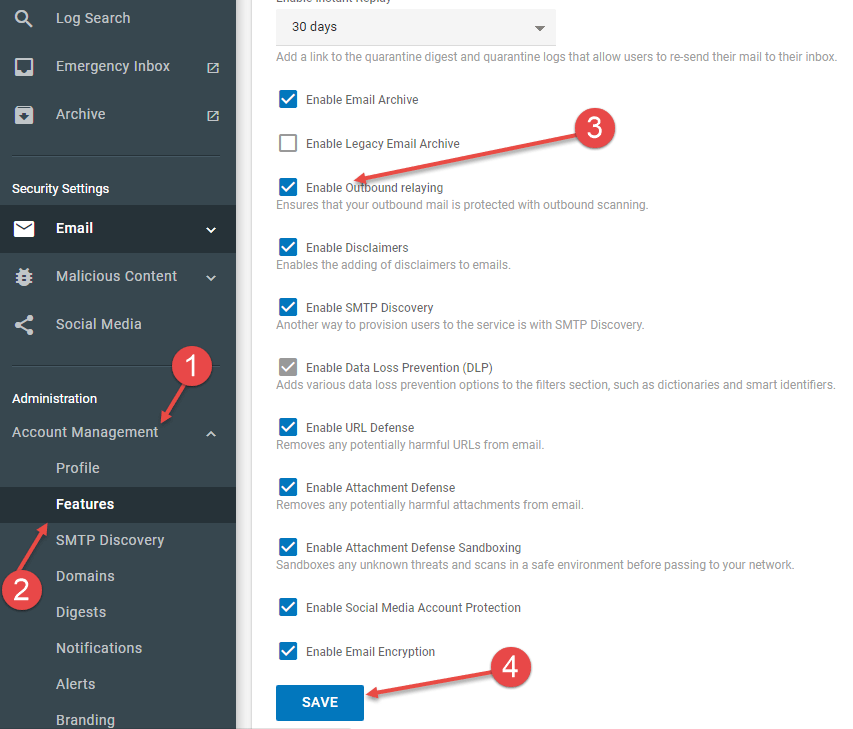
1. Enable outbound relaying in Spambrella
- Sign in to the Spambrella interface.
- Go to Administration > Features.
- Enable Outbound Relaying.
- Save your changes.
2. Add the managed hosted service IP addresses
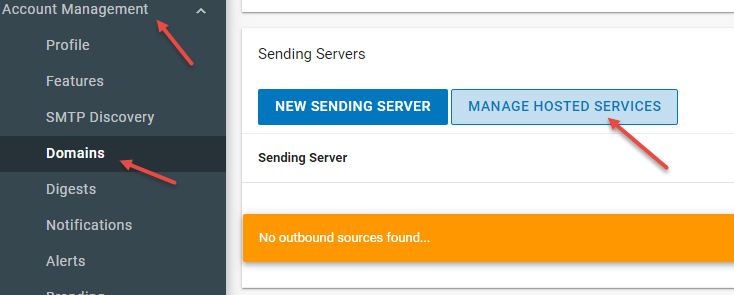
- In Spambrella, go to Administration > Domains.
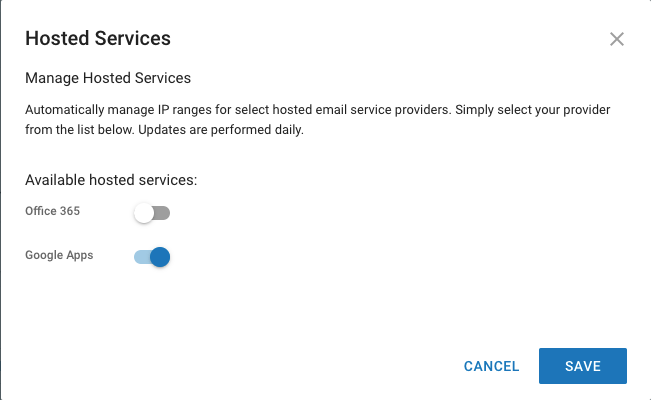
- Open Managed Hosted Services.
- Select Google Apps.
- Save.
3. Configure the Google Workspace outbound gateway
- Sign in to the Google Admin console.
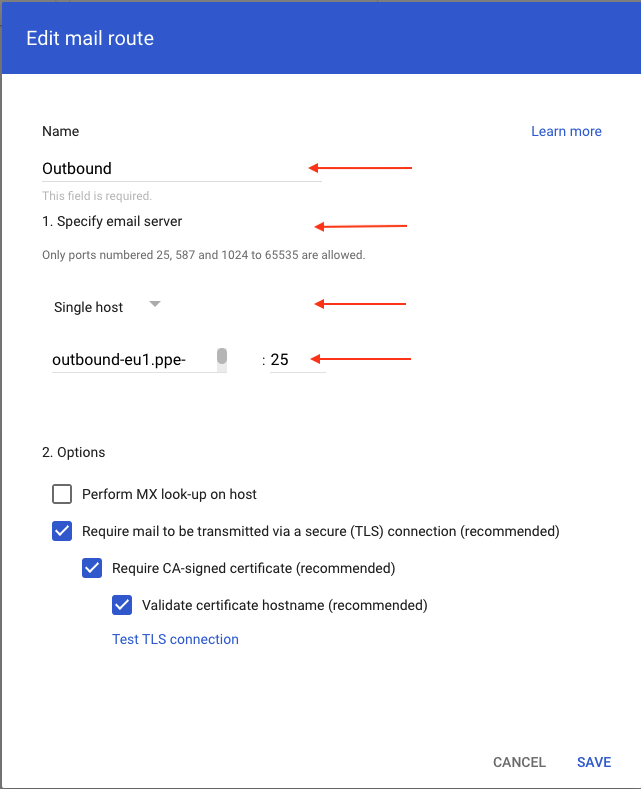
- Go to Apps > Google Workspace > Gmail > Hosts.
- Click Add Route.
- Name the route appropriately, such as Outbound.
- Set the outbound gateway host to the smart host value listed in Connection Details.
- Save the route.
- Go to Apps > Google Workspace > Gmail > Routing.
- Create a new rule such as Outbound Through Spambrella.
- For Email messages to affect, choose Outbound.
- Enable Change the route and Also reroute spam.
- Select the outbound route you created earlier.
- Open Show options.
- Under account types, include users, groups, and unrecognized or catch-all addresses as needed.
- Under Envelope Filter, choose Only affect specific envelope senders, switch to Pattern match, and enter your sending domain pattern.
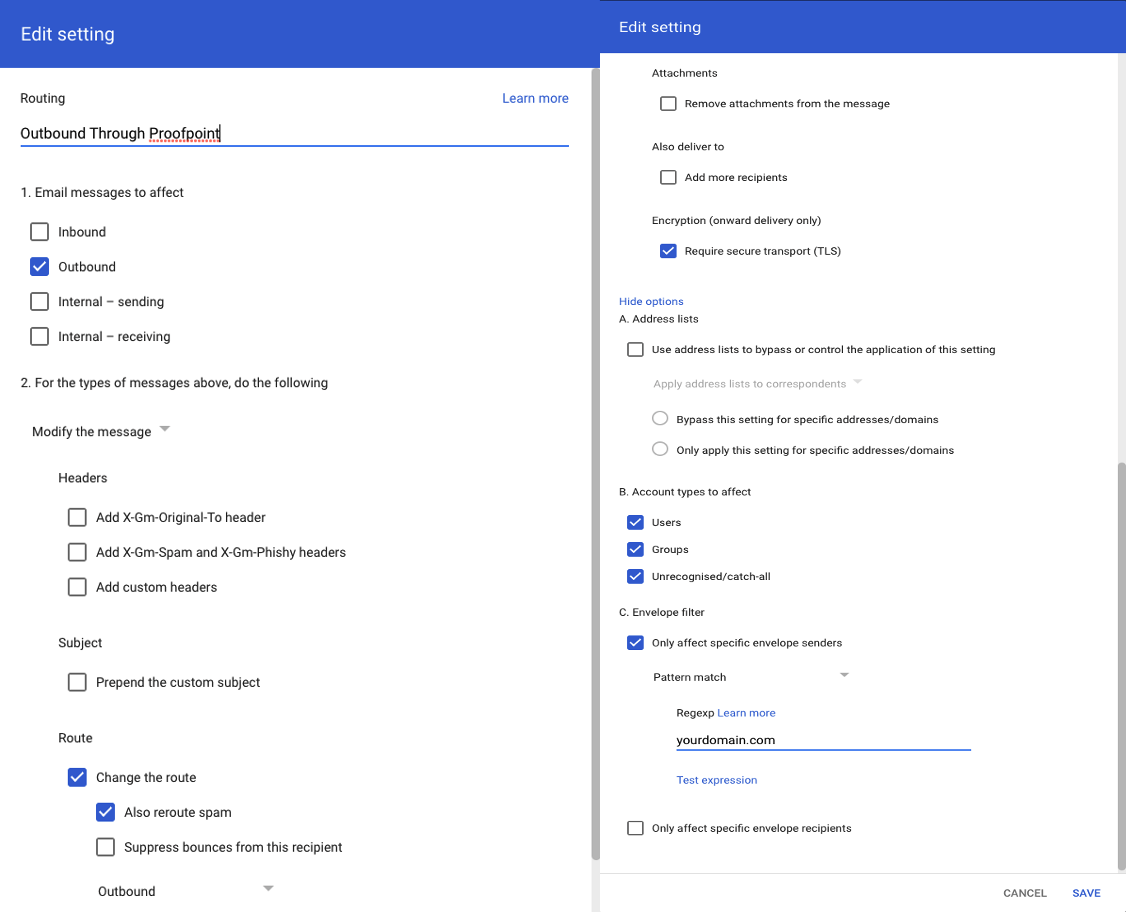
If you have multiple sending domains, either create separate outbound routing rules per domain or use a broader regular expression that safely covers all approved sender domains.
4. Configure internal routing
- Go to Apps > Google Workspace > Gmail > Hosts.
- Create a route named Internal Google Workspace.
- Set the host to
aspmx.l.google.comon port25. - Leave Perform MX lookup on host unchecked.
- Enable secure transport, CA-signed certificate validation, and certificate hostname validation.
- Save the route.

- Return to Settings for Gmail > Routing.
- Create or edit a rule for Internal Sending.
- Change the route from Normal Routing to Internal Google Workspace.
- Open Show options.
- Under account types, include users and groups.
- Under Envelope Filter, choose Only affect specific envelope senders, switch to Pattern Match, and enter your domain.
- Save the rule.
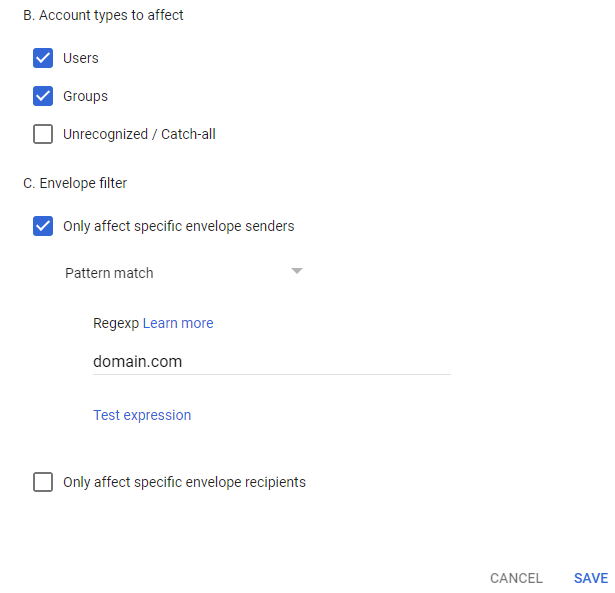
When configured this way, mail exchanged internally inside Google Workspace does not pass through Spambrella for spam inspection. Google Workspace changes can also take up to 24 hours to apply fully.
Final DNS and policy changes
- Update your MX records to point to the Spambrella MX values shown in Connection Details.
- Update your SPF record so outbound mail sent through Spambrella is authorized for your domain.
- Use a low DNS TTL before cutover if you want a quicker rollback path during testing.
Further reading
Use these related resources while you complete the rollout and post-cutover checks.