
Situation You want to protect your organisation from unauthorised access by requiring users to enter an additional code when they log in.
Solution Enable two-step authentication and follow the setup guidance below.
What is two-step authentication?
Two-step authentication helps protect your organisation from unauthorised access by requiring two methods, or authentication factors, to verify a user’s identity when they log in. It helps defend against phishing, social engineering, password brute-force attacks, and attackers exploiting weak or stolen credentials.
What happens when you turn on two-step authentication?
Authentication method: SMS
Once two-step authentication has been enabled for your organisation, users are prompted to enter both their password and a passcode sent to their mobile number when they log in.
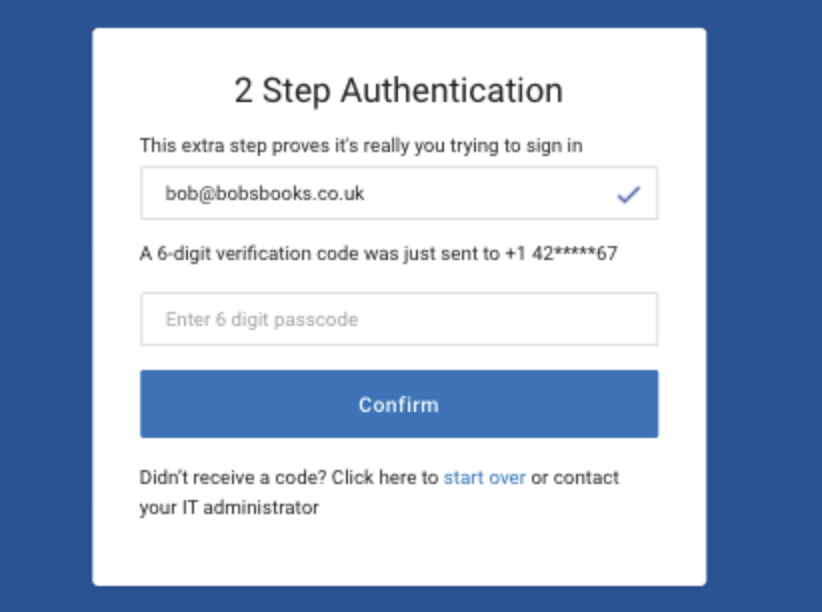
After a successful login, the user will not be prompted for another passcode for 12 hours. If they clear their browser cookies, they will be prompted for a new passcode the next time they log in.
Important Every user in scope must have a valid mobile number assigned to their account. Without one, the user cannot receive an SMS passcode and will be unable to log in while two-step authentication is enabled.
How do I enable two-step authentication?
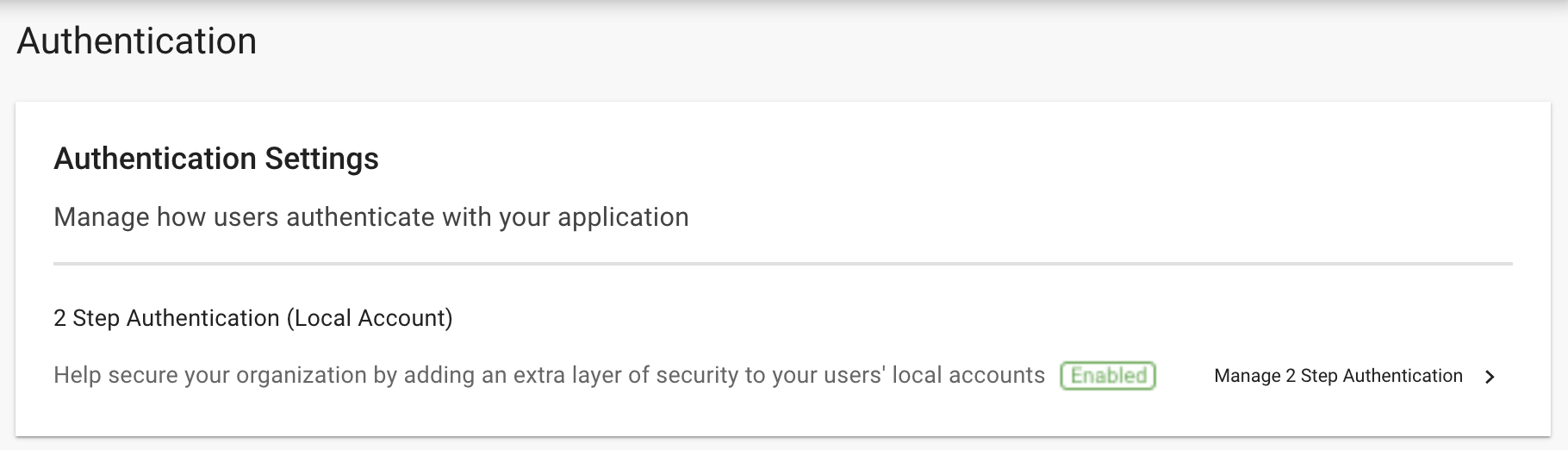
- Navigate to Administration > Account Management > Authentication.
- Select Manage 2 Step Authentication.

- Use the toggle to enable 2 Step Authentication.
- Choose which users to include:
All users requires every user in the organisation to enter a passcode when logging in.
Admin only requires only administrators to enter a passcode. - Select Save.
- Select Confirm on the update summary.
How do I disable two-step authentication?
- Navigate to Administration > Account Management > Authentication.
- Select Manage 2 Step Authentication.
- Use the toggle to disable 2 Step Authentication.
- Select Save.
- Select Confirm on the update summary.
Frequently asked questions
How will I know if two-step authentication is enabled or disabled?
Navigate to Administration > Account Management > Authentication and check the setting in the two-step authentication section. Enabled is shown in green and disabled is shown in grey.
Will I receive a notification if the settings change?
Yes. When the status or scope of two-step authentication changes, an email is sent to the organisation’s technical contact.
How can I update a user’s mobile number?
Locate the user, then navigate to Profile Page > Mobile Number.
Will mobile numbers sync from Active Directory or Azure Directory?
Yes. Both Active Directory and Azure Directory mobile number fields are synchronised.
Can I add a mobile number through CSV import?
Yes. CSV import includes a mobile number field.
Does every in-scope user need a valid mobile number?
Yes. Every in-scope account, including your own, needs a valid mobile number. Without one, the user cannot receive a one-time passcode and will be unable to log in.
If I have accounts on multiple sites, will each one require a passcode?
Yes. For stronger security, a passcode is required per account and per site. After a successful login, that account will not request another passcode for 12 hours.
Can I reset my password while two-step authentication is enabled?
Yes. Users can reset their password by email using the existing password reset process. When SMS is the authentication method, password reset by SMS is not available.